
1. Go to the Hugo Health login page
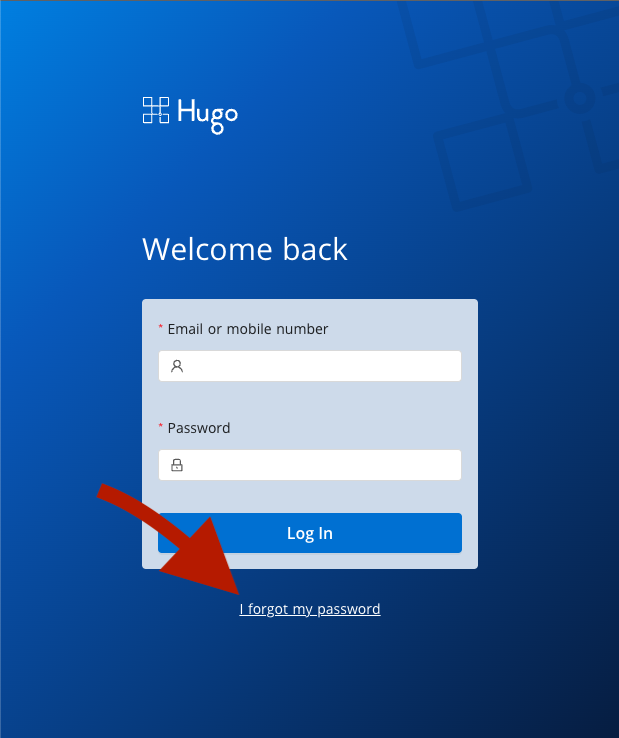
Visit the patient portal by navigating to https://app.hugo.health/login and select "I forgot my password" under the login box.
2. Enter your email
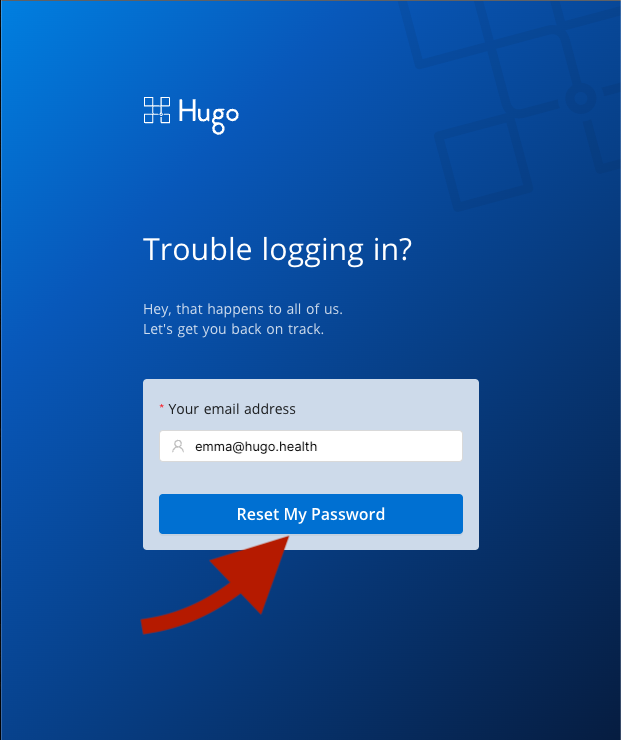
Enter the email that you use to login to your Hugo Health account, then press "Reset My Password".
3. Check your email
Login to your email provider and look for an email from no-reply@hugo.health with the subject "Your Verification Code". Enter that code in the input field, then type your new password into the boxes on the page.
Please keep in mind you must use:
- At least eight characters
- At least one uppercase and one lowercase letter
- At least one number and one special character (eg. !@#$%^&*)
You must enter this password twice so we can verify that you know what your new password is going to be.

5. All Done!
After selecting "Reset My Password", you should be all good to go. If you see any error messages or something doesn't look right, reach out to support@hugo.health so we can do our best to help you out!
Comments
0 comments
Article is closed for comments.