
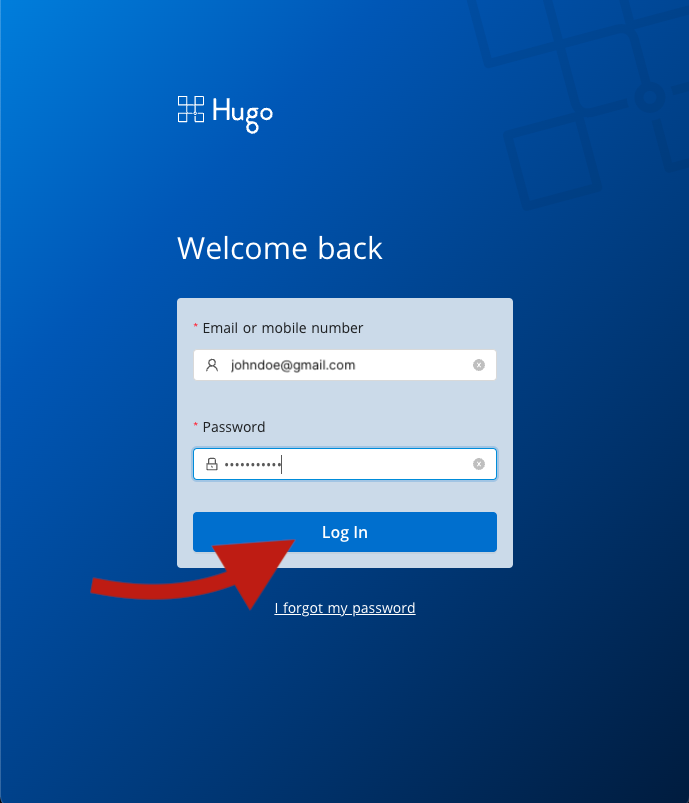
1. Login to Hugo Health
Go to https://app.hugo.health and login using your Hugo Health username and password. Don't remember your password? Follow the instructions to reset your password here.
2. Scroll down to "My account settings"
Scroll down until you see the blue button labeled "My account settings". Click that button.

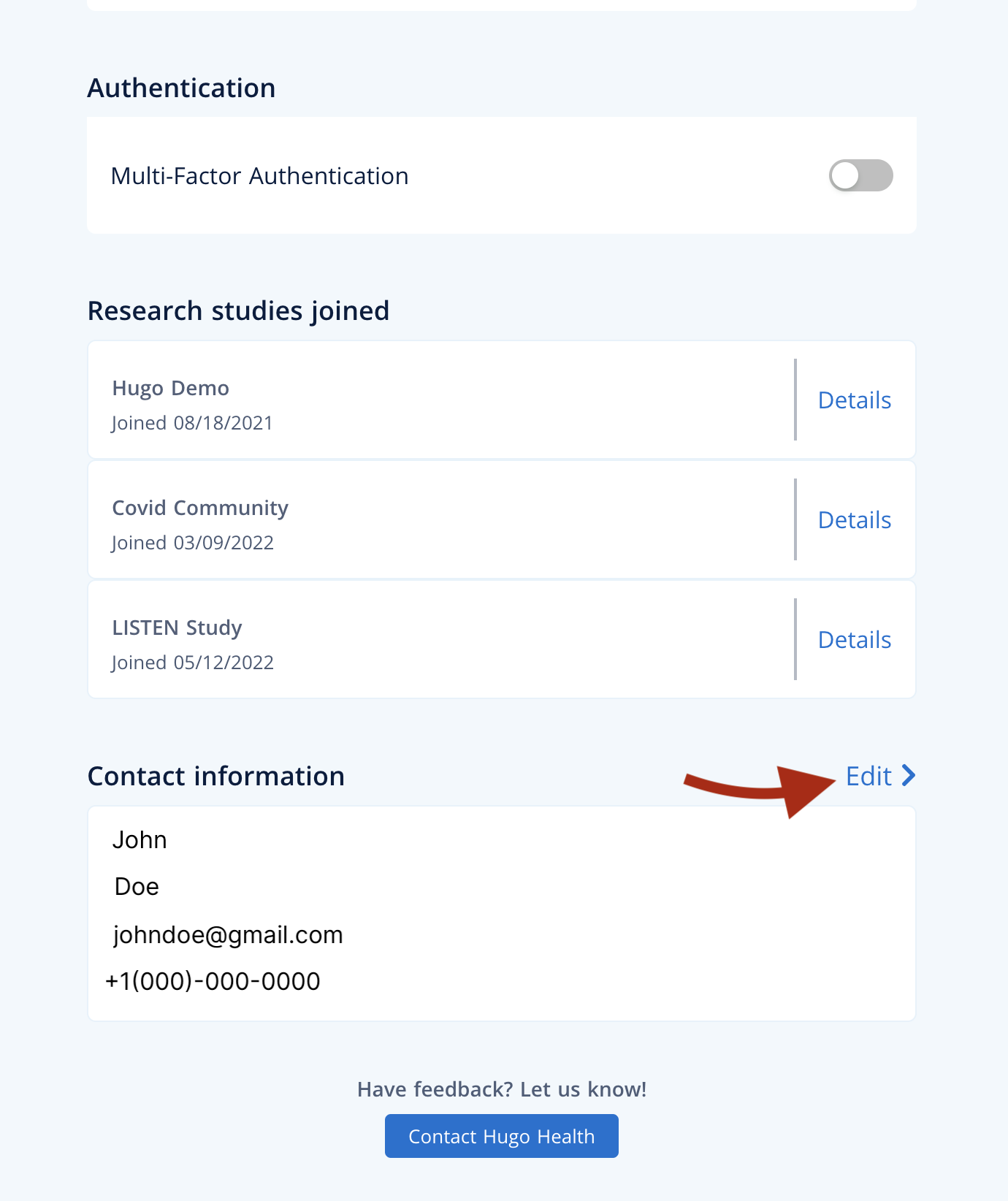
4. Scroll down to the "Contact Information" Section
Scroll down to the bottom of the page until you see the "Contact Information" section. Click the "Edit" button to the right of the header.
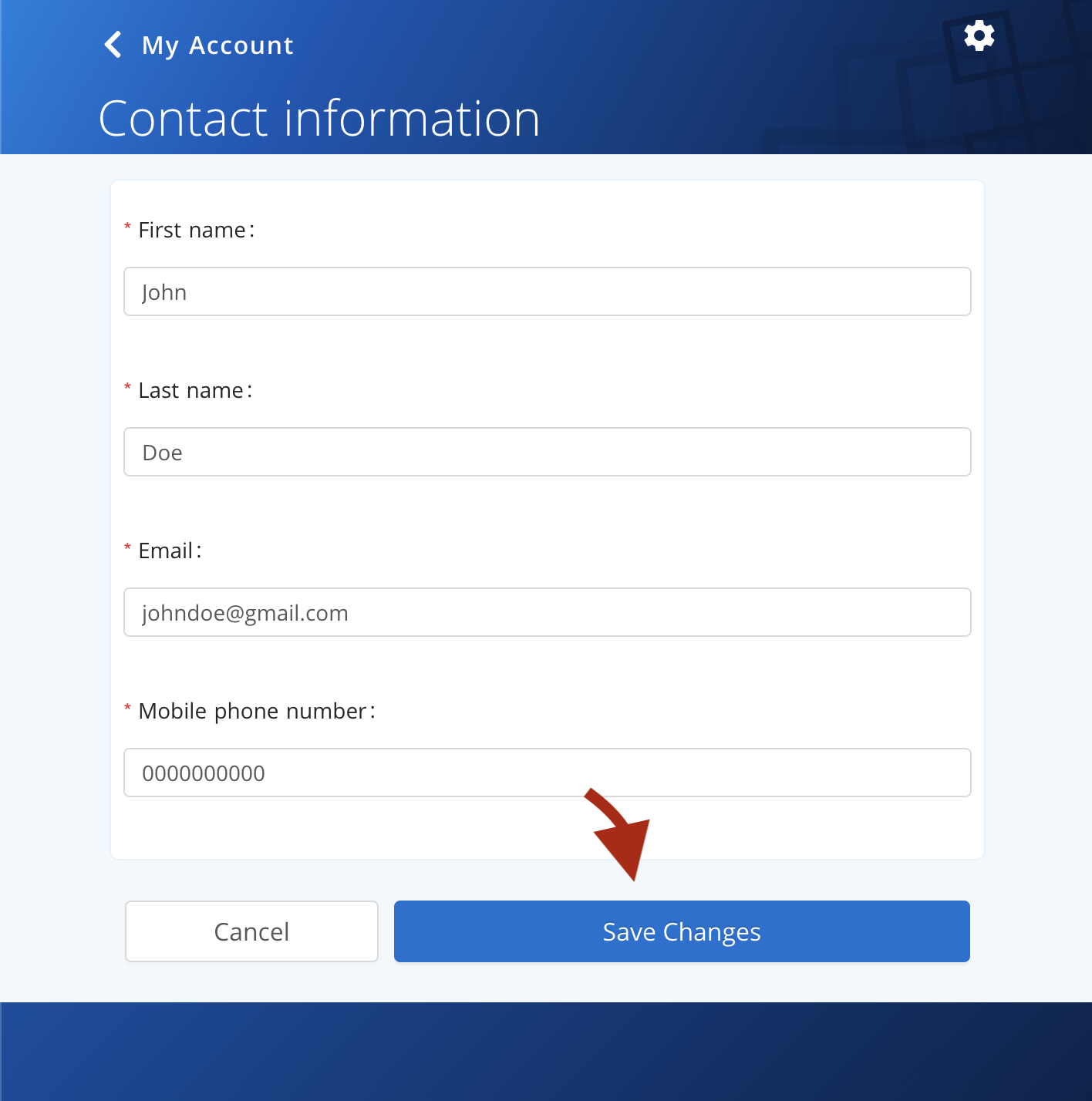
3. Enter your updated Contact Information
Update your first or last name, email, or phone number in the form then click "Save Changes".
Having trouble? Reach out to support@hugo.health for assistance.
Comments
0 comments
Article is closed for comments.