
1. Log in to the Patient Portal
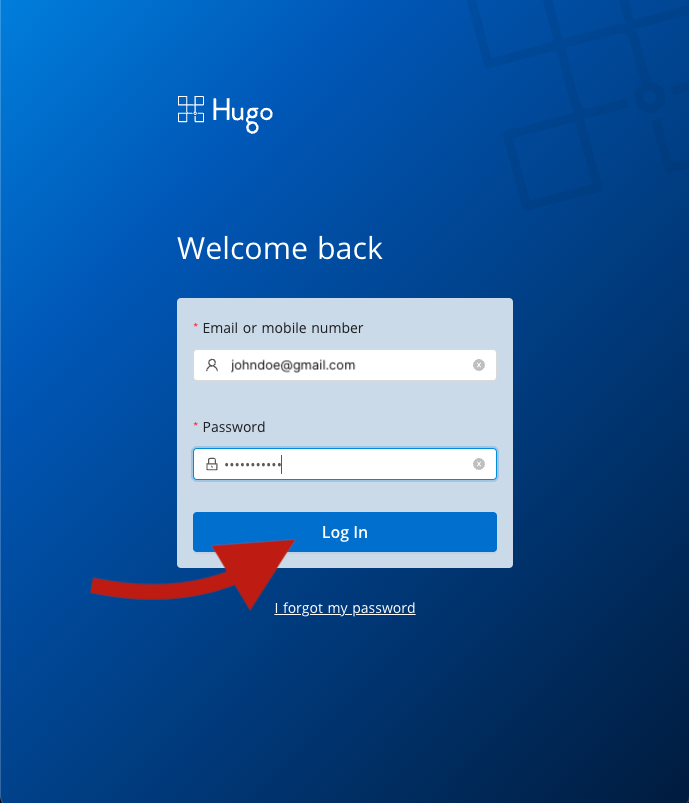
Go to https://app.hugo.health and enter your Hugo Health username and password, then click the button that says "Log In".
2. Navigate to Account Settings
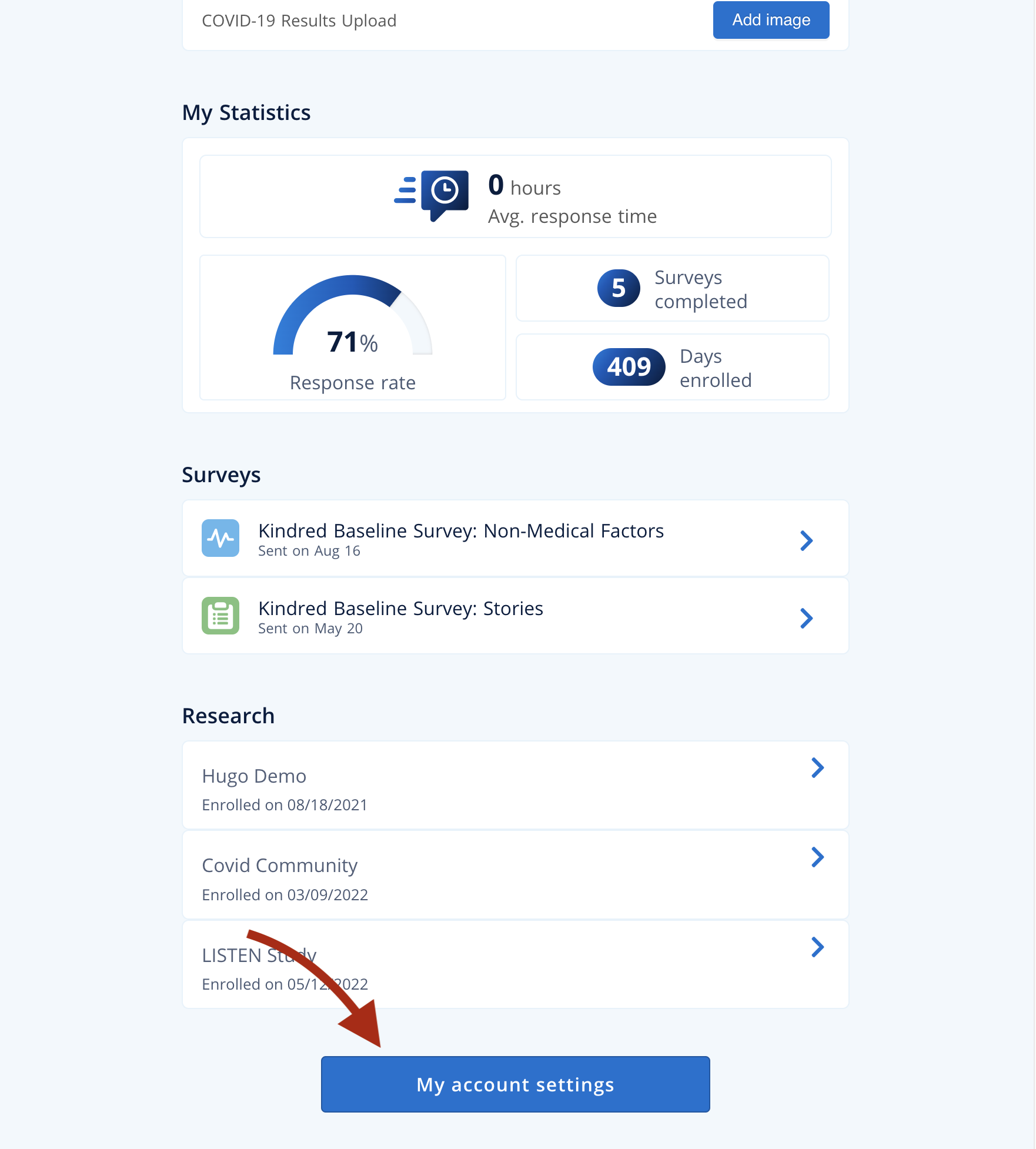
Scroll down the page until you see a blue button that says "My account settings". Click that button.
3. Select "Add new connection"
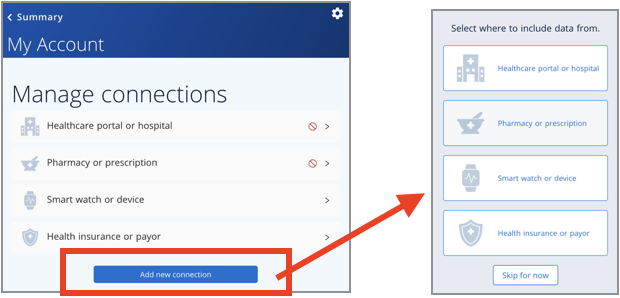
Under the "Manage connections" header you will see a list of connection types. Under that list is a blue button labeled "Add new connection". Click that button, then select that connection type you wish to add.
4. Search for your healthcare system
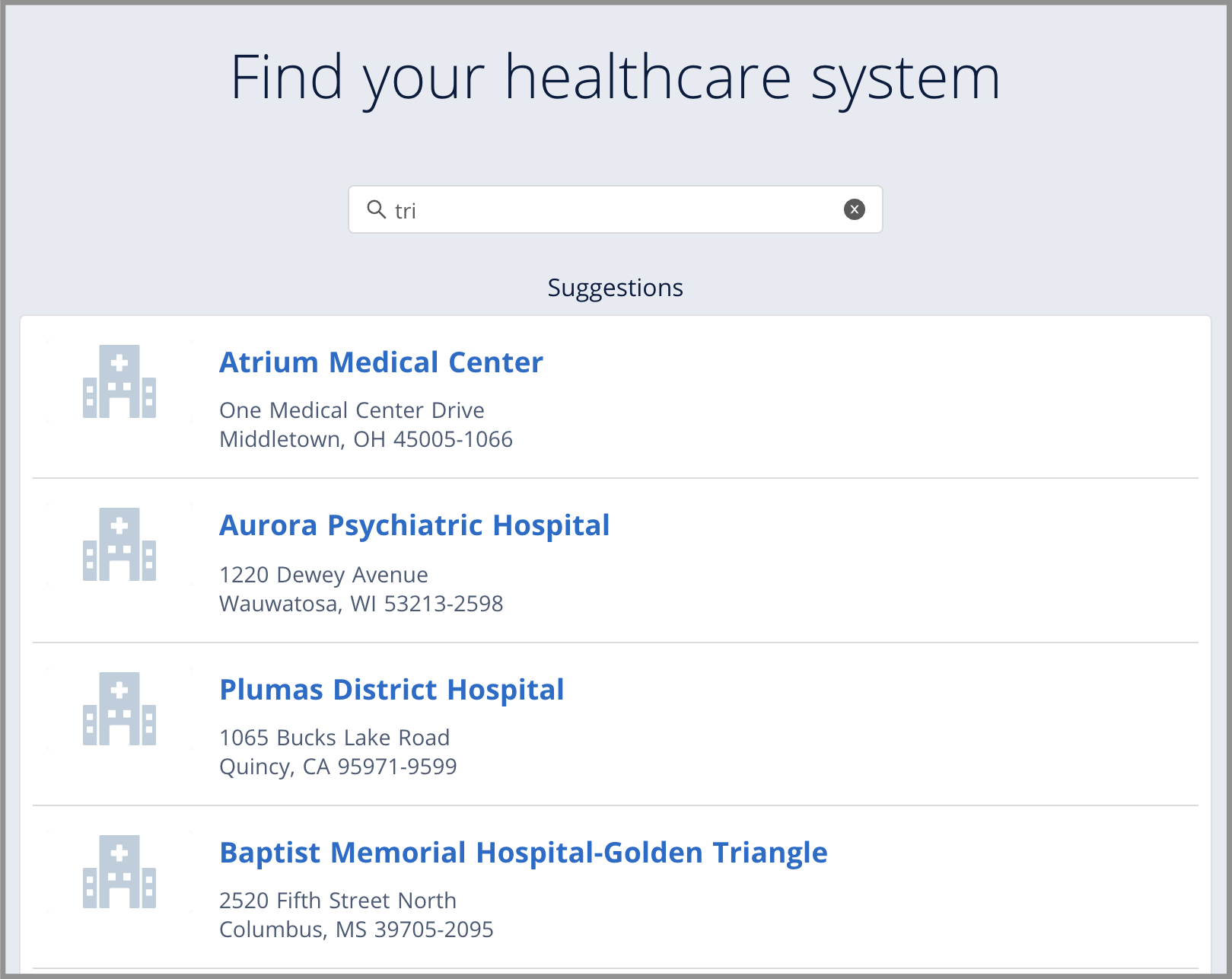
Type in the name of your healthcare system or hospital. If you can't find your health system, check out this article about what to do if you can't find your hospital or healthcare system.
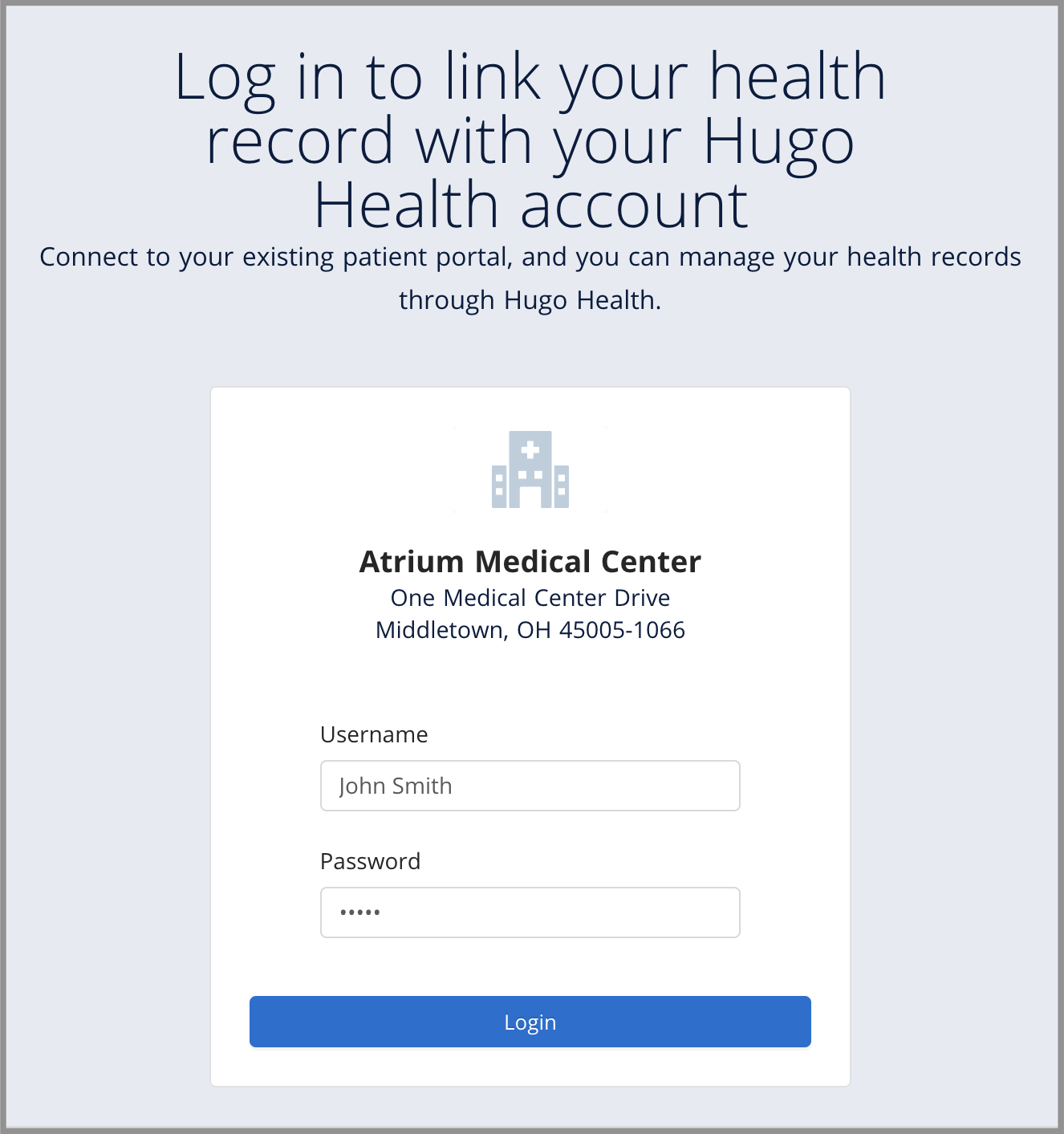
5. Enter your credentials
Enter the username and password that you would use to login to your healthcare portal.
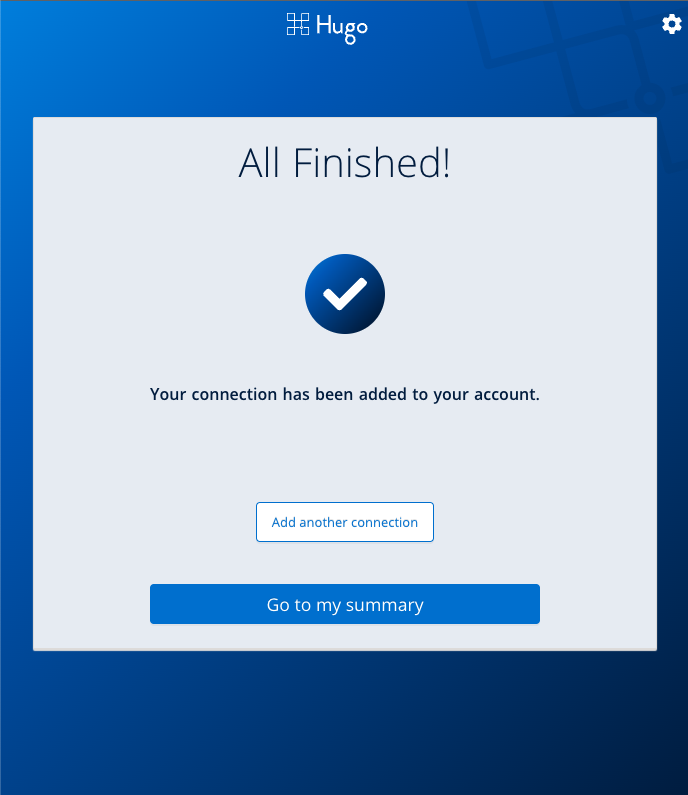
6. Success!
If you completed the process you should see a screen that says "All Finished!".
Having trouble? Reach out to support@hugo.health
Comments
0 comments
Article is closed for comments.