
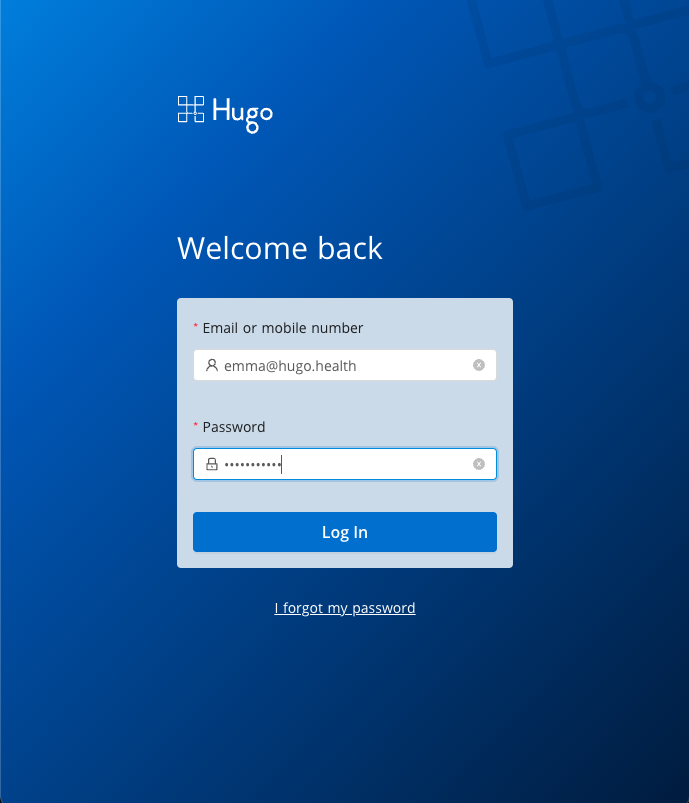
1. Log in to the Hugo Health Patient Portal
Go to https://app.hugo.health and log in using your Hugo Health username and password
2. Navigate to Account Settings
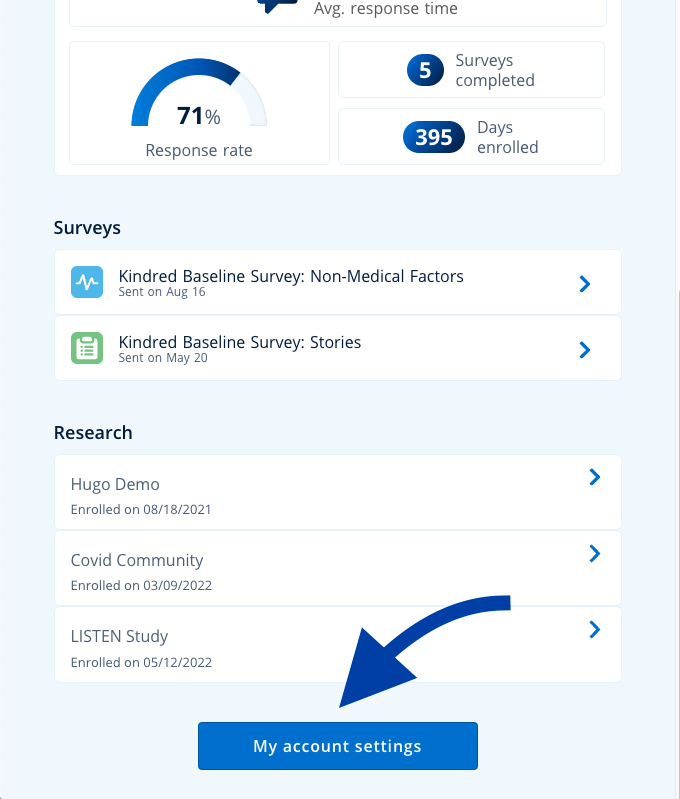
Scroll down the page until you see a blue button that says "My account settings". Click that button.
3. Select "Add new connection"
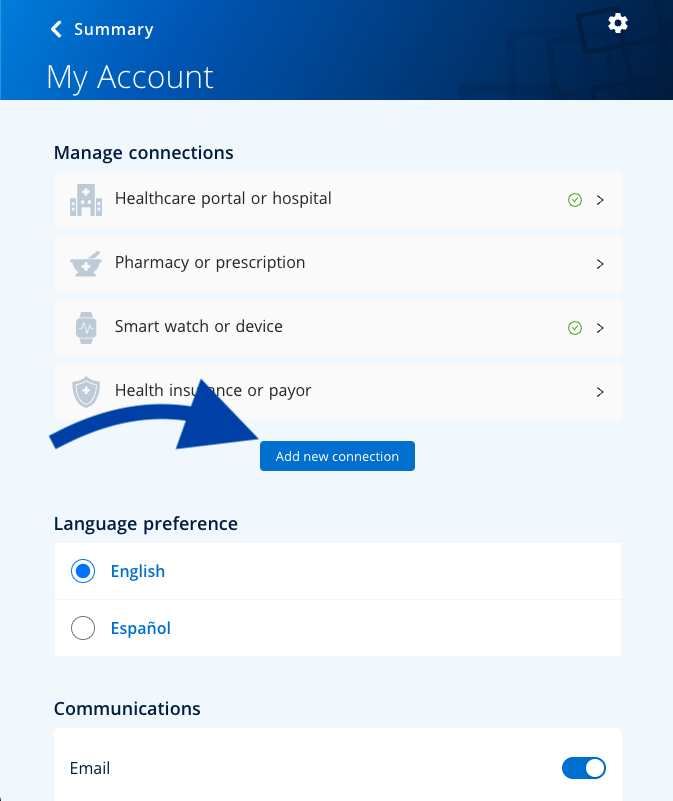
Under the "Manage connections" header, you will see a list of connection types. Under that list is a blue button labeled "Add new connection". Click that button.
4. Select "Smart watch or device" Type
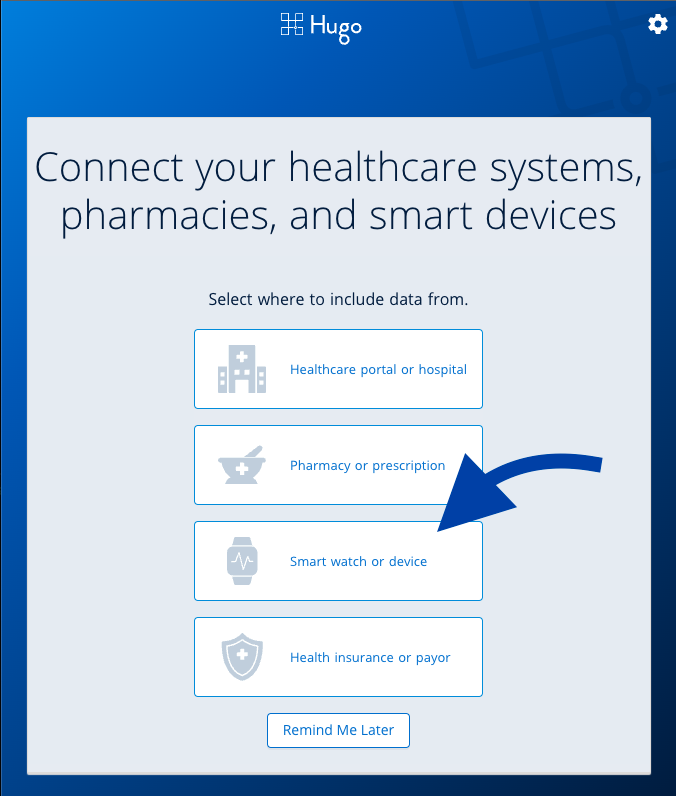
There is a list of four different data types you can add to your Hugo Health account. Select the "Smart watch or device" type to add your Withings device.
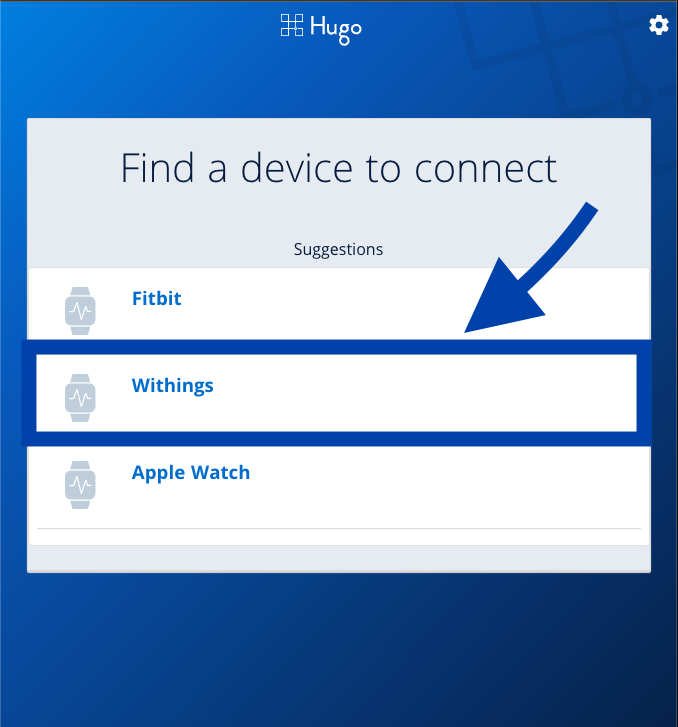
5. Select the "Withings" option
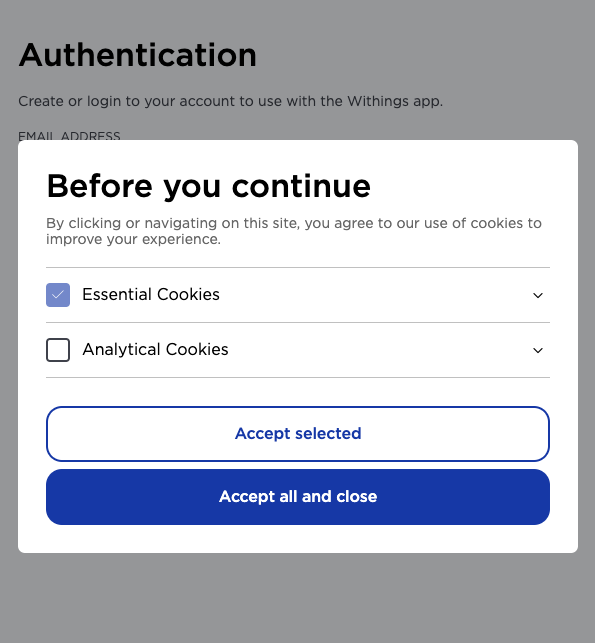
6. Accept Cookies
Accept one of the two cookie options.
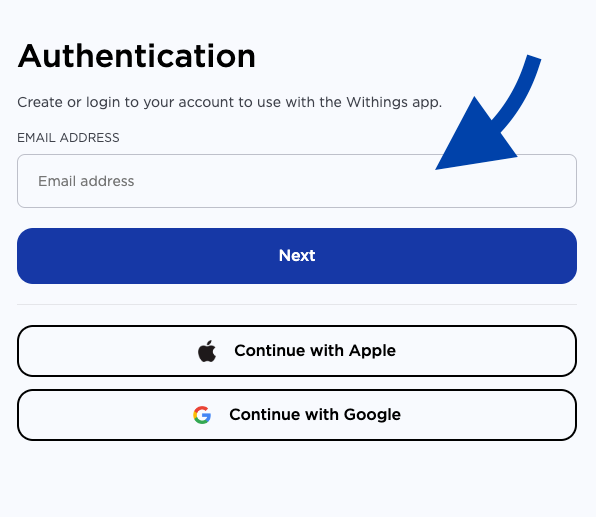
7. Enter your Email
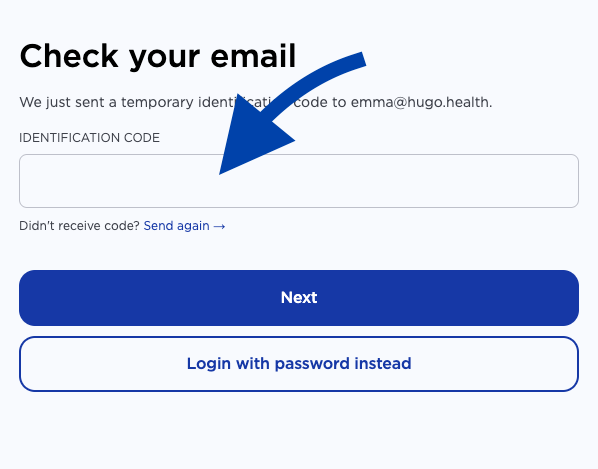
8. Enter the code sent to your email
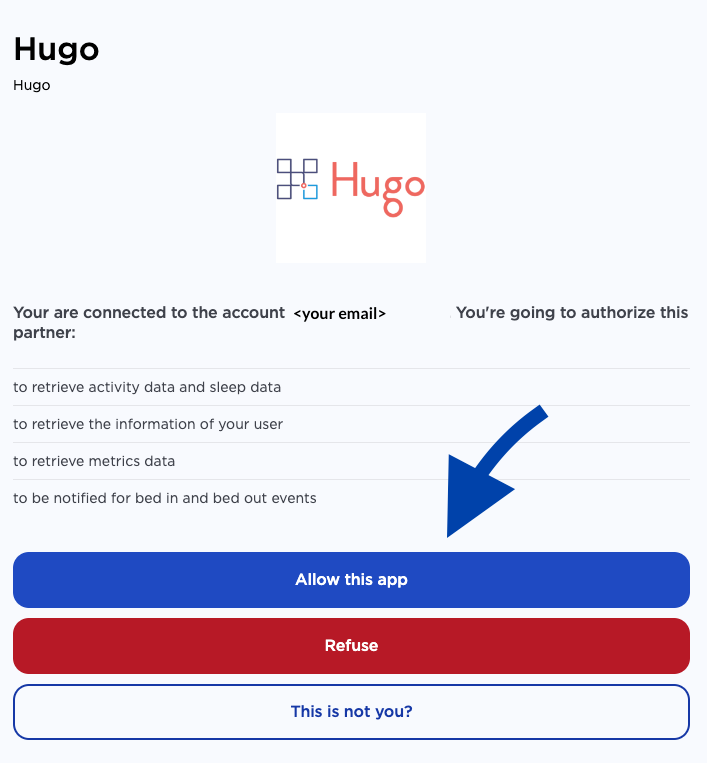
9. Agree to Data Sharing with Hugo Health
Select the button that says "Allow this App" to share your data with Hugo Health.
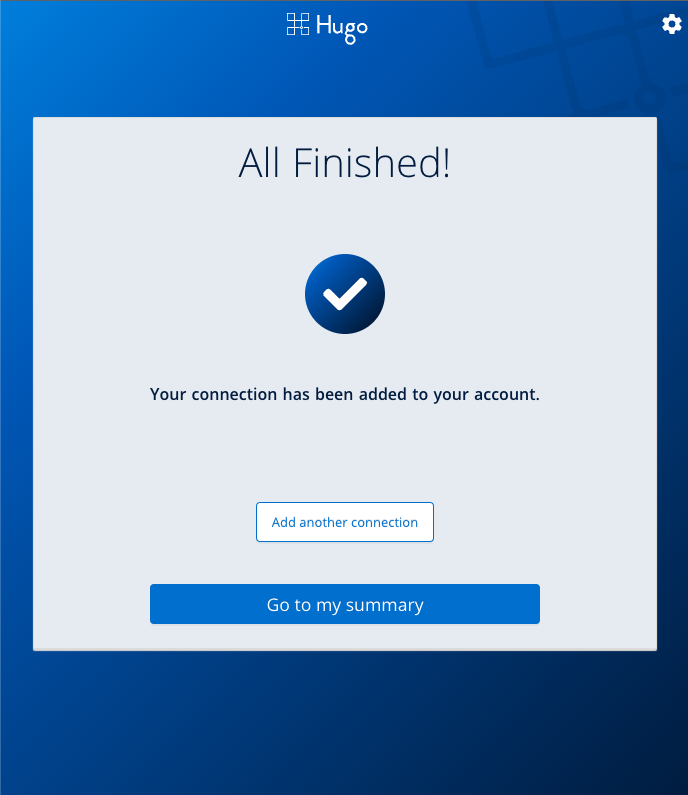
9. Success!
If you completed the process, the popup window should close and you should see a screen like the one below!
If you have any concerns or problems, feel free to email support@hugo.health
Comments
0 comments
Article is closed for comments.